Bulk Time Import
When to Use Bulk Time Import
Use Bulk Time Import when:
- A client or vendor sends recurring time files (CSV/XLS/XLSX)
- The column structure stays consistent
- You want repeat uploads to require only file selection, not remapping
Step 1: Navigate to Bulk Time
- In Bilflo, go to: Billing → Contract → Bulk Time
- Select the “We’re switching to a new and improved Bulk Time page. Try it out.” link to navigfate to this new feature.
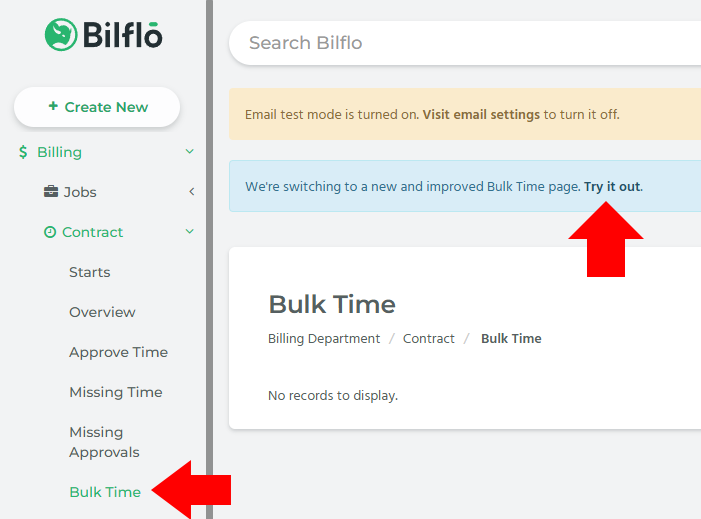
Step 2: Create a Time Template (One-Time Setup)
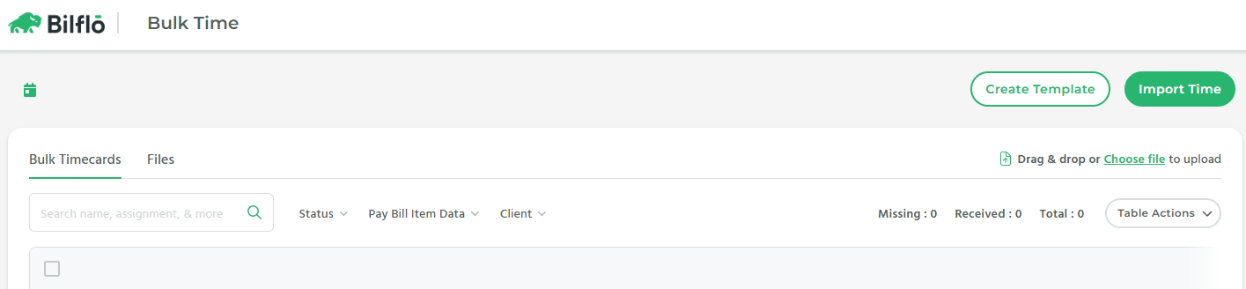
- Select Create Template
- Choose Create Template again in the Time Templates modal
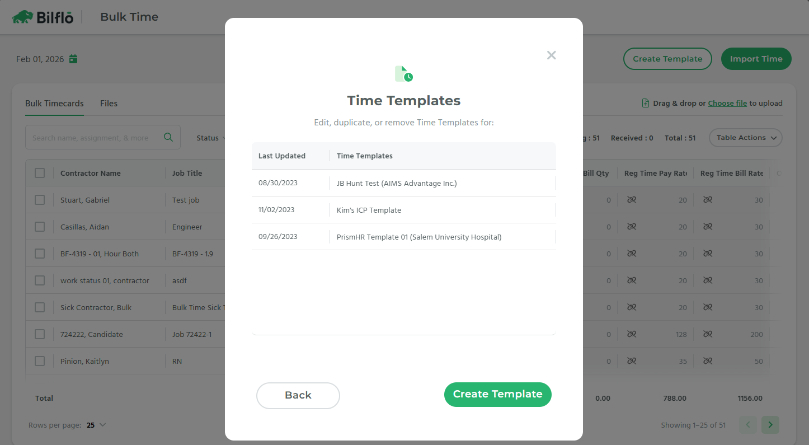
- You will be guided through three steps:
- Upload
- Map
- Detail
Step 3: Upload a Company Sample CSV
Upload one representative file from the company/vendor. This file defines the structure for all future imports.
Supported formats:
.csv.xls.xlsx
Best practice:
- Use a file with real data
- Ensure all columns you expect in future files are present
Step 4: Map CSV Columns to Bilflo Properties
In the Map step, link each CSV column to a Bilflo field.
Example Mapping
| CSV Column | Maps to Bilflo Field |
| Name | First Name + Last Name |
| Regular Hours | Regular Time Pay Qty |
| OT Hours | OT Pay Qty |
| Job Title | Job Title |
| Assignment ID | Assignment |
- Mapped fields will show a checkmark
- Required fields must be mapped to proceed
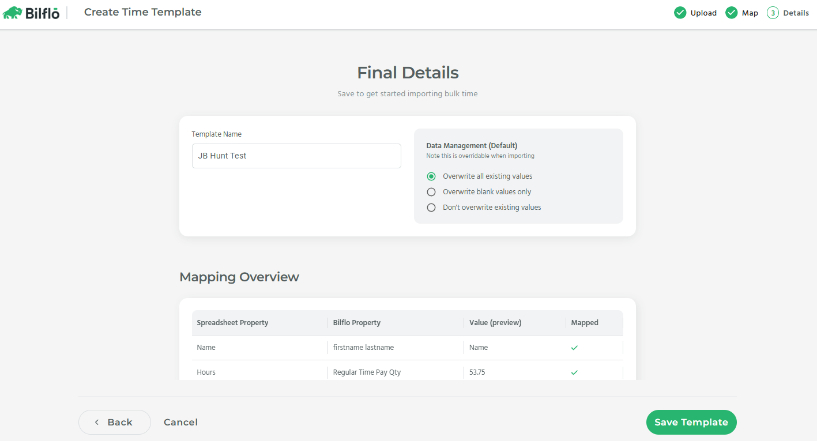
Step 5: Final Details & Save Template
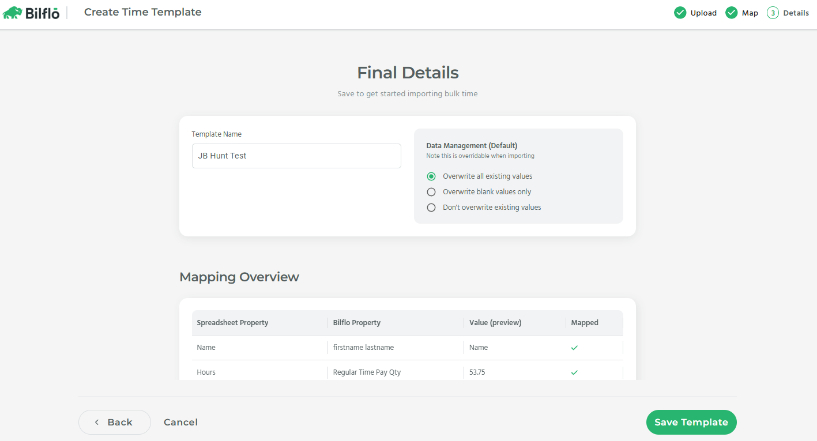
On the Final Details screen:
Template Name
Use a clear, reusable name:
ABC Hospital – Weekly CSVPrismHR – Salem University
Data Management Rules
Choose how imports affect existing data. This setting applies each time the template is used.
- Overwrite all existing values(Recommended default)
Replaces any existing time values with what is in the file. Use this when re‑importing corrected files or when the CSV is the source of truth.
- Overwrite blank values only
Fills only empty fields in Bilflo and leaves existing values untouched. Useful when the CSV is partial or supplemental.
- Don’t overwrite existing values
Imports values only if the field does not already contain data. Best for one‑time backfills where existing time must be preserved.
? Tip: For recurring weekly payroll imports, Overwrite all existing values is the safest and most predictable option.
Review Mapping Overview
Confirm:
- Spreadsheet column → Bilflo field
- Sample value preview
Click Save Template
✅ The template is now reusable
Step 6: Import Time Using a Saved Template
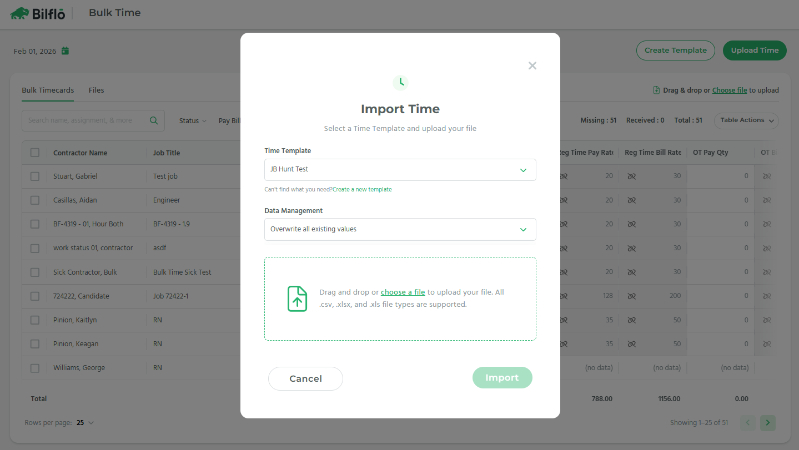
For all future imports from the same company:
- Select Import Time
- Choose the saved Time Template
- Confirm Data Management option
- Upload the new CSV file
- Click Import
– Bilflo automatically applies the saved mapping
No remapping required.
CSV Template – Example
Below is a recommended company-facing CSV layout:
Employee Name,Assignment ID,Regular Hours,OT Hours,Job Title,Work Date John Smith,A-10234,40,5,RN,02/01/2026 Jane Doe,A-10441,36,0,Engineer,02/01/2026– Consistent column names = automatic mapping
Best Practices for Auto‑Mapping Success
- Use the same column headers every time
- Do not rename or reorder columns after template creation
- Avoid merged cells or formulas
- One company = one template
If a company changes their file format:
- Create a new Time Template
Common Scenarios
Same Company, New Week
– Use existing template
Same Company, Format Changed
– Do Not Create new template
New Company
– Create brand-new template