How to Create Invoices
Overview of the Invoicing Workflow
The invoicing process follows four main stages:
- Create Invoices – Generate invoices from jobs or invoice groups
- Deliver Invoices – Send invoices to clients or mark them as delivered
- Invoice History – Review sent invoices and payment status
- Accounting – Sync or export invoices to accounting systems (for example, QuickBooks)
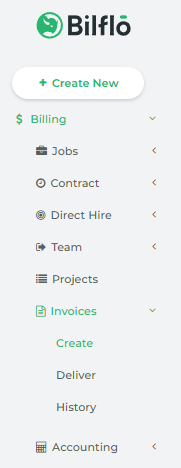
Navigation path throughout the guide:
Billing → Invoices → Create / Deliver / History
1. Creating Invoices
Location: Billing → Invoices → Create
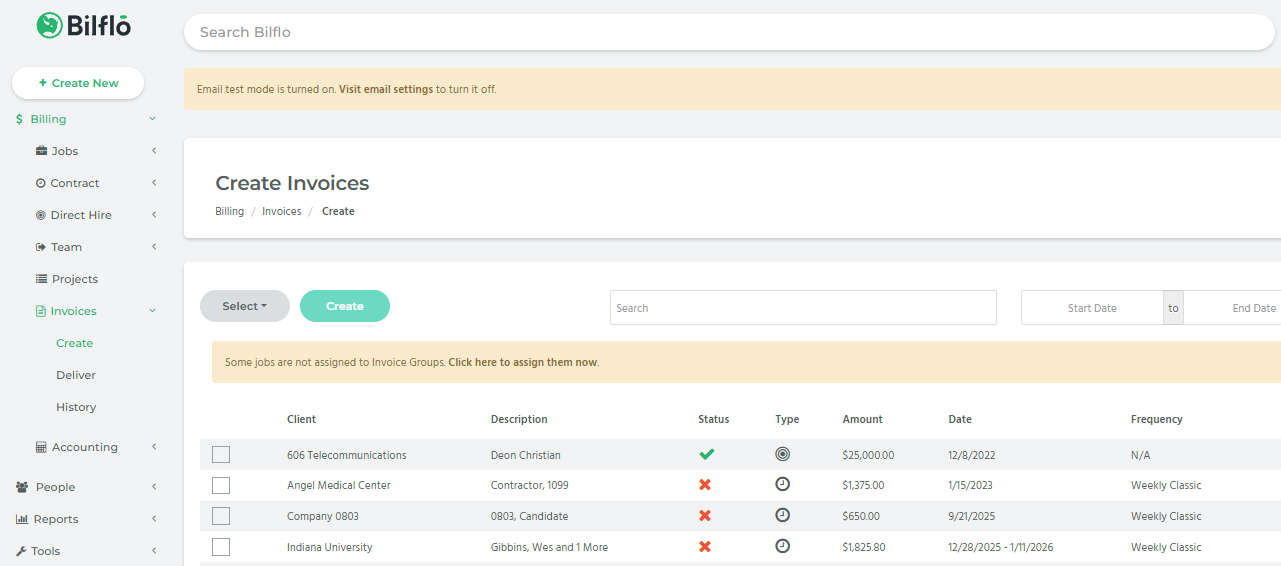
The Create page lists invoice-ready items by client.
Key Elements on the Create Screen
- Client – Company or organization being invoiced
- Description – Job, contractor, or candidate tied to the invoice
- Status
- Ready – Item is eligible to be invoiced
- Not Ready – Item is missing setup, grouping, or configuration
- Type – Invoice type (Classic, recurring, etc.)
- Amount – Invoice total
- Date – Invoice service date
- Frequency – Weekly, one-time, or N/A
Warning Banner
“Some jobs are not assigned to Invoice Groups. Click here to assign them now.”
Invoices must belong to an Invoice Group before they can be created.
Creating One or More Invoices
- Select one or more rows using the checkboxes
- Click Create
- A modal appears with the following fields:
- Invoice Date (required)
- Starting Invoice Number (required)
- The system displays the last invoice number used
- Click Create Invoices
Successfully created invoices move to the Deliver stage.
2. Delivering Invoices

Location: Billing → Invoices → Deliver
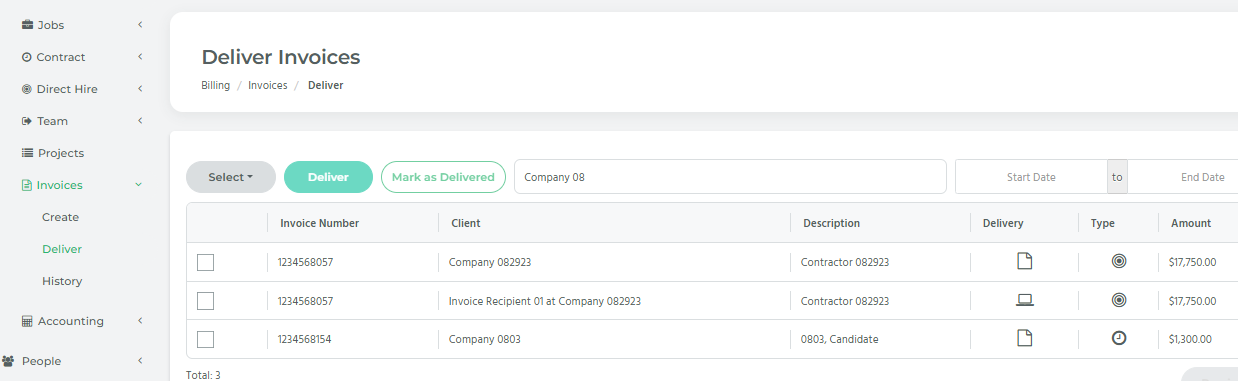
This page is used to send invoices to clients or manually mark them as delivered.
Deliver Screen Columns
- Invoice Number – System-generated invoice ID
- Client – Company or invoice recipient
- Description – Job or contractor details
- Delivery – Indicates available delivery method
- Type – Invoice category
- Amount – Invoice value
Totals appear at the bottom of the list.
Delivering Invoices
- Select one or more invoices using checkboxes
- Choose one of the following actions:
Deliver
- Sends the invoice to the client using the configured delivery method
Mark as Delivered
- Manually marks the invoice as delivered
- Useful for off-platform delivery or testing scenarios
Reviewing and Managing an Invoice from the Amount
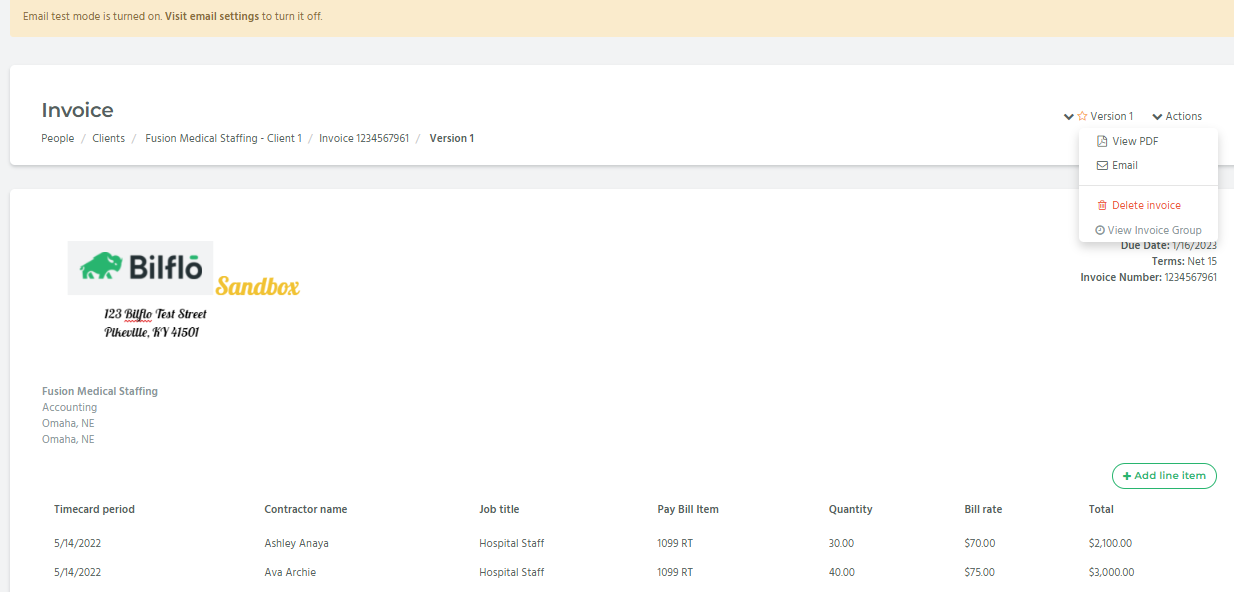
- Click the Amount value for an invoice to open the invoice detail page
- From the invoice detail view, additional actions are available, including:
- Create a new invoice version for corrections or updates
- Adjust Invoice Group settings, such as billing rules or grouping behavior
These actions allow you to update how the invoice is structured without recreating it from scratch.
For detailed guidance on configuring Invoice Groups, see:
How to Set Up Contract Invoice Groups: https://www.bilflo.com/kb/how-to-set-up-contract-invoice-groups
Important Warning About Delivered Invoices
Once an invoice has been delivered to a client, special care should be taken when making changes:
- Creating a new version is recommended instead of modifying the original invoice
- Changes to Invoice Group settings may affect future invoices, but may not retroactively update invoices that have already been delivered
- If an invoice has already been emailed or sent externally, confirm changes with the client before redistributing
- Deleting or significantly modifying delivered invoices can cause confusion, reconciliation issues, or accounting discrepancies
As a best practice, always review invoice details carefully before delivering, and use invoice versions to maintain a clear audit trail after delivery.
Delivered invoices move to Invoice History.
3. Invoice History

Location: Billing → Invoices → History
The History page shows all created invoices, whether delivered or not.
Available Filters
- Search – Client name, description, or invoice number
- Date Range – Start Date to End Date
- Apply – Refreshes the results
History Columns Explained
- Client ID / Client – Customer being invoiced
- Description – Job, contractor, or service
- Type – Invoice method
- Invoice Number – Unique identifier
- Amount – Invoice value
- Payment Status
- Unpaid
- Paid (when synced or updated)
- Date – Invoice date
Each row may include actions to view or manage the invoice.
4. Accounting Integration
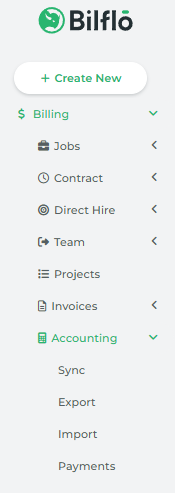
Location: Billing → Accounting
Accounting tools help sync invoices with external systems.
Accounting Options
- Sync – Push invoices to accounting software
- Export – Download invoice data for external use
- Import – Bring in payments or updates from accounting tools
- Payments – View or reconcile invoice payments
Ensure invoices are created and delivered before syncing.
Common Tips and Best Practices
- Assign Invoice Groups early
- Verify invoice dates and numbers before creation
- Review invoice details before delivery
- Use invoice versions instead of editing delivered invoices
- Sync accounting regularly to keep payment status accurate