How to Use Purchase Orders
A purchase order in Bilflo belongs to the client, not to the contractor. It is a record with a number, an optional expiration date, and an optional starting balance. You then attach it to one or more jobs (assignments), and every approved timecard on those jobs draws the balance down.
This means you do not have to wait for a new contractor to be added before you set up a PO. Create the purchase order on the client first. When the assignment is built, take one extra step and attach that job to the PO.
How the pieces fit together
There are four objects, in this order:
- Client. Owns the purchase order. One client can have many POs.
- Purchase order. Holds the number, expiration date, starting balance, and alert settings.
- Job. The contractor’s assignment. A job can carry more than one PO, and one of them is marked Primary.
- Approved timecard. Writes an entry in the PO journal and lowers the current balance.
If a field seems to be missing, it is usually because you are one level up or one level down from where it lives. In particular, the contractor profile has no PO field at all.
Step 1: Create the purchase order
Go to People › Clients, open the client, then Contract › POs. There is also a POs button on each row of the Clients list and on the client’s detail page, which is the faster route.

Click New Purchase Order and fill in the details.

| Field | What it does |
|---|---|
| Purchase Order Number | Required. The number your client issued. This is what appears on the PO list, on the journal, and on the invoice line if you use the PO tokens. |
| Expiration Date | Optional. Drives the expiring alert. It does not block approvals after that date. |
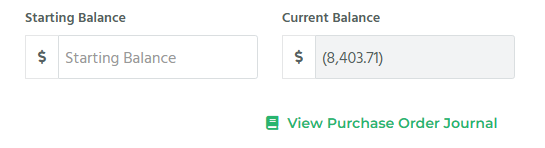
| Starting Balance | Optional. The dollar amount the client authorized. Leave it blank for a PO that only needs a number carried onto invoices, with no dollar cap to track. |
| Current Balance | Read only. Bilflo maintains this as timecards are approved, so it cannot be edited directly. |

Step 2: Set the alerts
In the Notification Settings box, set Days Before Expiring and Balance Falls Below, then use Add Team Members to choose who receives the email. Bilflo’s scheduled email run sends the alert to the people on that list.

Two things commonly trip people up here:
- Days Before Expiring stays greyed out until an expiration date has been saved on the PO.
- No alert is sent to anyone until at least one team member has been added to the list.
Step 3: Attach the jobs
In the Jobs Assigned box, click Add, search the client’s jobs, tick the ones this PO funds, and save. The table then shows the contractor, the job, the term date, and which job holds this PO as Primary.


If an assignment does not exist yet, it will not appear in that list. Build the job first, then come back and attach it.
Two ways to attach a job
Both routes produce the same result. Choose based on where you are starting from.

- From the purchase order (best when one PO funds several people). Open the PO, then Jobs Assigned › Add. You can select many jobs at once, and the same screen gives you Transfer, Make Primary, and Remove.
- From the job (best for a single new assignment). Open the contract job, find the PO Number section, click Add PO, pick the number from the client’s list, and click Add. Note that a PO added this way is automatically set as Primary on that job.


How the balance draws down
Approval is the trigger, not invoicing. When a timecard is approved on a job attached to a PO, Bilflo writes a journal entry against that PO and lowers the current balance. Un-approving the timecard removes the entry and restores the balance, so the ledger follows the timecard rather than the invoice.
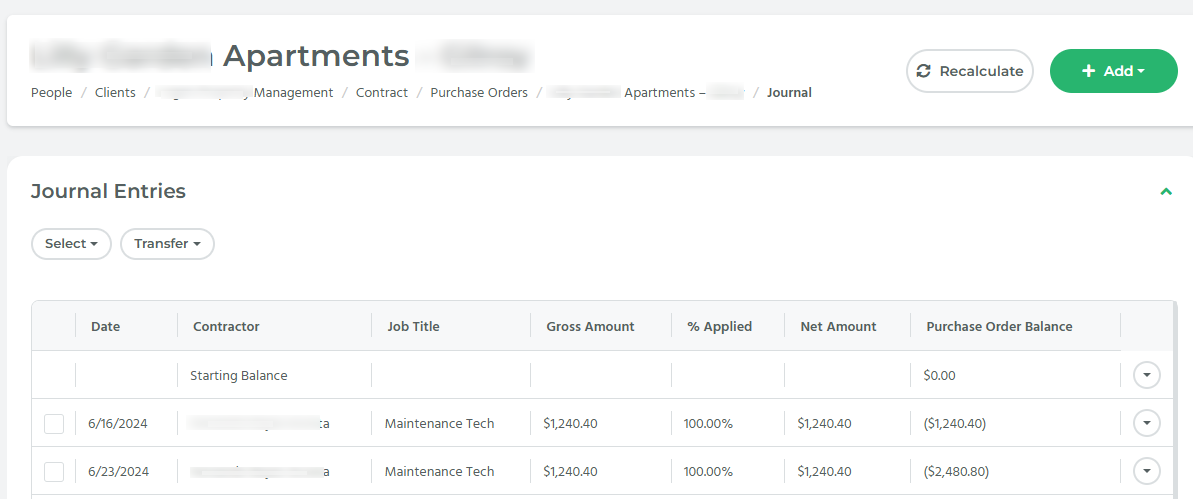
Open the journal using View Journal on the PO detail page. Each line shows the date, contractor, job title, gross amount, percentage applied, net amount, and the running purchase order balance.
| Date | Contractor | Job title | Gross amount | % applied | Net amount | PO balance |
|---|---|---|---|---|---|---|
| Starting Balance | $50,000.00 | |||||
| 8/10/2026 | A. Reyes | Senior Analyst | $3,600.00 | 100% | $3,600.00 | $46,400.00 |
| 8/17/2026 | A. Reyes | Senior Analyst | $3,600.00 | 60% | $2,160.00 | $44,240.00 |
| 8/17/2026 | Adjustment | $1,000.00 | $1,000.00 | $45,240.00 |
In the example above, the third row is a split: 60 percent of that week landed on this PO and the remaining 40 percent on another. The fourth row is a manual adjustment.
Correcting the journal
These tools live on the journal page, except Transfer, which is on the PO detail page.
- Split an entry. Open a journal row and assign two or more POs, each with a percentage. Use this when one week of work is funded from two purchase orders.
- Add Adjustment. A dated, manual dollar entry. Because Current Balance is not editable, this is how you correct a balance, record an increase the client approved, or book something that never came through a timecard.
- Recalculate. Replays entries from a chosen date forward using current values. Run it after you change rates or repair a split, so the running balance rebuilds cleanly.
- Transfer. On the PO detail page, tick the jobs and click Transfer. You choose the destination PO, a “transfer timecards after this date” cut-off, and whether those jobs become Primary on the destination. This is the clean way to move a team onto a renewal PO mid-assignment.
Multiple POs and the Primary flag
One job can carry several purchase orders, and exactly one of them is marked Primary. Primary decides which number prints when an invoice uses the primary PO token, and the PO list shows a Primary count next to the total job count.
Because a PO added from the job page becomes Primary automatically, check the flag whenever you add a second PO to a job that already had one. To change it, open the PO detail page, tick the job under Jobs Assigned, and click Make Primary.
Getting the PO number onto an invoice
Tracking a PO and printing a PO are two separate settings. Attaching a PO to a job makes Bilflo track the balance. Getting the number to show on the invoice is configured on the invoice group, not in invoice settings.
On the invoice layout
Open the client’s invoice group under People › Clients › Contract › Invoice Groups and edit the invoice configuration. Purchase Order appears in the field list, so you can add it as its own column, or use it as a row grouping to break the invoice out by PO. This option is available to every company.

Inside a QuickBooks line description
If your company syncs invoices to QuickBooks Desktop or QuickBooks Online, you can also embed the number in the line item description text. This lives on the accounting integration rather than in invoice settings: open your QuickBooks accounting configuration and click Map Invoice Items.
{ponumber-primary}prints the job’s primary purchase order number.{ponumber-non-primary}prints the job’s other purchase order numbers.
These tokens only affect invoices synced to QuickBooks. If your company does not use the QuickBooks integration, that page will not appear, and the invoice group column is the route to use.
Retiring a purchase order
- Make Inactive. Keeps the record and its full journal history, and any jobs still attached stop drawing the balance down. This is the right choice for a spent, closed, or superseded PO.
- Delete. Found in the Danger Zone on the PO detail page. Reserve this for a purchase order created by mistake. Anything with history should be made inactive instead.
Things to watch for
- There is no PO field on a contractor profile. The purchase order lives on the client and links to the job, so always start from the client.
- The balance moves when a timecard is approved, not when an invoice is sent, so a PO can read as consumed before the invoice goes out.
- Expiration and Balance Falls Below are alerts, not gates. Neither one blocks an approval, and the balance can run past zero. The alerts are the control, so make sure someone is on the notification list.
- Days Before Expiring will not accept a value until an expiration date has been saved on the PO.
- Adding a PO from the job page makes it Primary without prompting. Verify the flag on any job that carries more than one PO.
- Making a PO inactive stops the drawdown but leaves the jobs attached, so reactivating it resumes the drawdown on those same jobs.
- Current Balance cannot be typed over. Correct it with Add Adjustment, or rebuild it with Recalculate.