QuickBooks – Match Clients
How to Match Clients Between Bilflo and QuickBooks
Client Mapping ensures that when timecards or invoices are exported to QuickBooks Desktop, they are associated with the correct QuickBooks Customer.
This must be done once per client.
Step 1: Open the Client Mapping Page
Navigate to:
Settings → Integrations → Configuration → Client Mapping
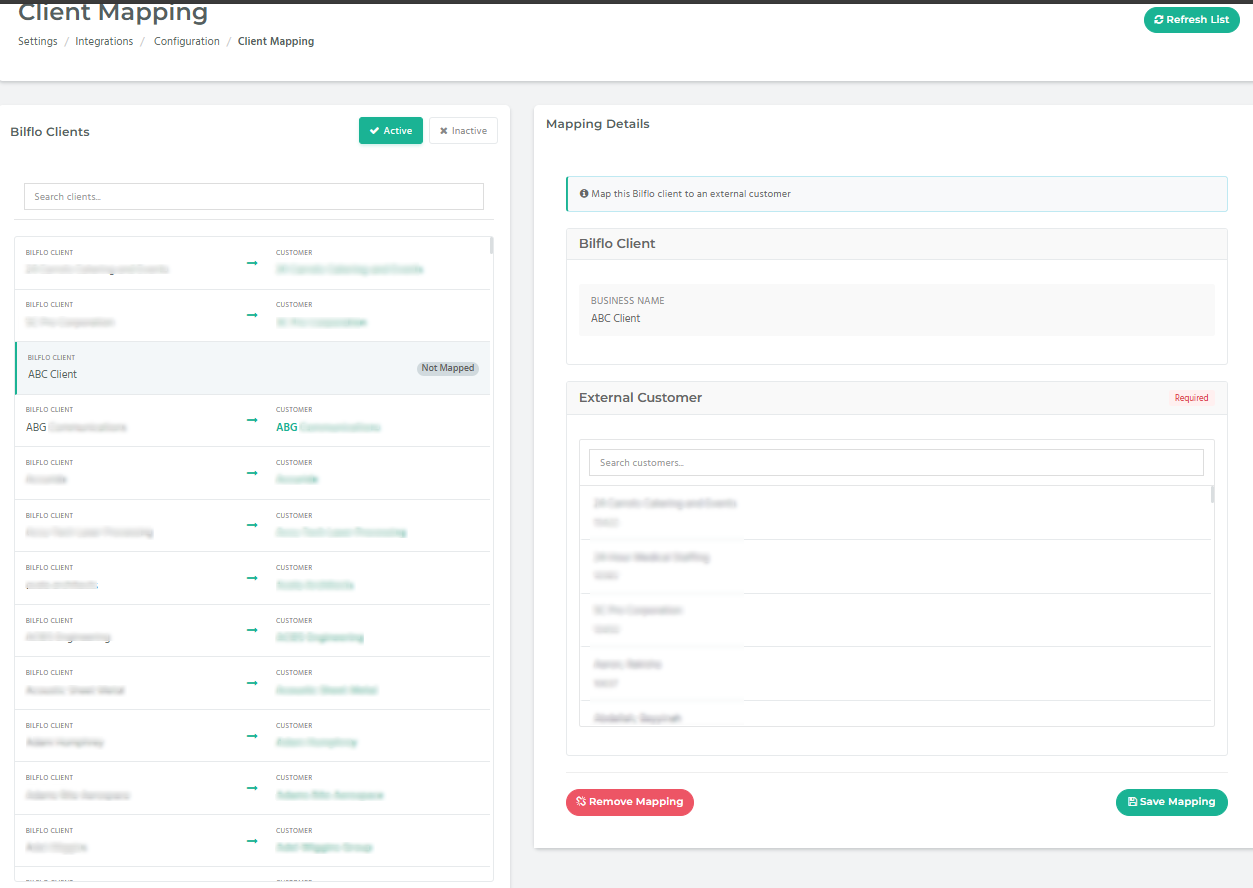
You will see:
- A list of Bilflo Clients on the left
- A dropdown showing QuickBooks Clients on the right
- A search bar to quickly find a client
- Tabs for Active and Inactive clients
- A Refresh List button (top right)
Step 2: Refresh Your QuickBooks Client List (Optional but Recommended)
Click Refresh List to pull the latest Customer List from QuickBooks Desktop.
Do this whenever:
- A new customer is added in QuickBooks
- A customer name changes
- A customer is reactivated or deactivated
Step 3: Find the Bilflo Client You Want to Map
Use the search bar to locate a specific client.
The left column shows:
- BILFLO CLIENT (the client name inside Bilflo)
- An arrow pointing to the currently selected QuickBooks client (if mapped)
If a client is not mapped, you’ll see:
Not Mapped
Step 4: Select the Matching QuickBooks Client
Click the dropdown next to the Bilflo client, shown under QUICKBOOKS.
From the dropdown:
- Scroll or search for the correct QB Customer name
- Click the name to select it
- Bilflo automatically saves the mapping (or click Save if your version requires it)
After mapping, you will see the QuickBooks client name appear next to the Bilflo client.
Example
If the Bilflo client is:
- “ABC Communications”
Then under QUICKBOOKS, select:
- “ABC Communications” (from your QB Customer List)
Once mapped, it will show:
ABC Communications → ABC Communications
Step 5: Repeat for All Clients
Go down the list and map each Bilflo client to its matching QuickBooks customer.
Clients must be mapped before exporting invoices or syncing job information.
⚠ Important Notes
- Client names do not have to match exactly between Bilflo and QB — you choose the corresponding one manually.
- If a client is missing from the dropdown, ensure:
- It exists in QuickBooks Desktop
- The QuickBooks Remote Connector is running
- You used Refresh List
- If a client is inactive in Bilflo, switch to the Inactive tab to map them.