QuickBooks – Object Mapping
Adding General Items & Mapping Custom Fields to QuickBooks Classes in Bilflo
This guide will walk you through setting up:
- Pay/Bill Items
- Invoice Mapping
- Contractor & Direct Hire Class Mapping
- Connecting Custom Fields to QB Classes
All of this is required to ensure Bilflo exports your invoices and class tracking cleanly into QuickBooks Desktop.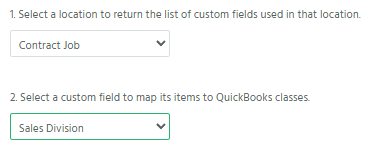
*Please note these are examples and should not be used for your OWN USE CASE
Part 1: Adding General Pay/Bill Items
General items include things like overtime, travel time, per diem, bonuses, ACA, background checks, etc.
Step 1 — Go to Invoice Mapping
Navigate to:
Settings → Integrations → Configuration → Invoice Mapping
You will see sections such as:
- Contractors Pay/Bill Items
- Direct Hire Pay/Bill Items
Step 2 — Add or Modify Pay/Bill Items
Each row contains:
- List — identifies the type of mapping (usually “QB – Items Table”)
- Item — the corresponding QuickBooks Item (Service Item)
Example from your screenshot:
| Bilflo Pay/Bill Item | QuickBooks Item |
|---|---|
| Regular Time | Contract Regular-Time |
| Background Check | Contractor Background Check |
| Travel Time | Contract Travel Time |
| ACA | Contract ACA |
To add or edit:
- Click the dropdown under Item.
- Choose the correct QuickBooks Item.
- Click Save.
? Tip: If new QB Items were recently created, click Refresh QuickBooks List to reload them into Bilflo.
Part 2: Connecting Custom Fields to QuickBooks Classes
Bilflo supports mapping your custom fields (like Branch, Division, Location, etc.) to QuickBooks Class tracking.
This lets your exported invoices automatically classify revenue in QuickBooks.
You’ll complete this in two modules, depending on staff type:
- Contractor Class Mapping
- Direct Hire Class Mapping
Part 2A: Contractor Class Mapping
Step 1 — Choose Location Type
Under Contractor Class Mapping, find:
1. Select a location to return the list of custom fields used in that location.
Choose:
➡ Contract Job
This loads custom fields added specifically to contractor job records.
Step 2 — Choose the Custom Field That Will Drive Class Mapping
Example from your screenshot:
2. Select a custom field to map its items to QuickBooks classes.
Choose a field such as:
➡ Sales Division (or Branch, Region, Business Unit, etc.)
This field must already exist in:
Settings → Custom Fields
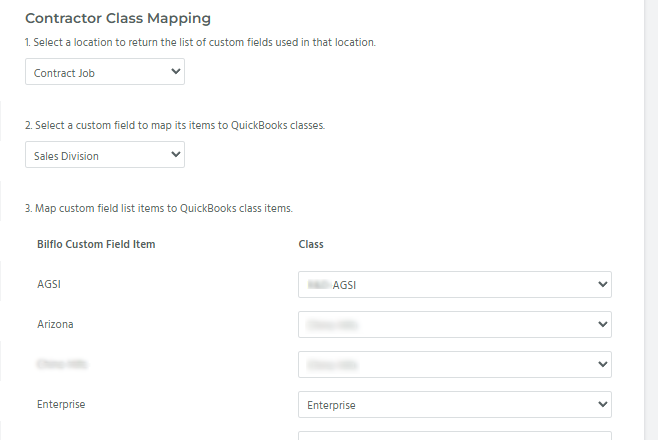
Step 3 — Map Each Custom Field Value to a QuickBooks Class
Bilflo will list each custom field option.
You then match each to the proper QB Class.
Example from the screenshot:
| Bilflo Custom Field Item | QB Class |
|---|---|
| Campus | R&D |
| Arizona | CITY |
| Enterprise | Enterprise |
| EOR | EOR |
| Portland | Oregon |
| San Diego | San Diego |
Do this for every value.
Then click Save.
Part 2B: Direct Hire Class Mapping
The process is identical, but uses Direct Hire data fields.
Step 1 — Select the Direct Hire Job Location
Choose:
➡ Direct Hire
Step 2 — Select the Custom Field to Map
Choose a field like:
➡ Sales Division (or whichever custom field is appropriate)
Step 3 — Map Bilflo Custom Field Items to QB Classes
Match each value exactly as you did for contractors.
Then click Save.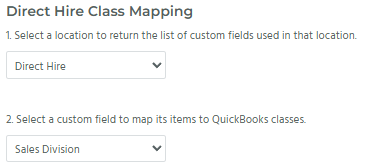
Part 3: Adding Custom Fields (Connected to Class Mapping)
Before you can map a custom field to a QB Class, it must exist in Bilflo.
Step 1 — Go to Custom Fields
Navigate to:
Settings → Custom Fields → New
Step 2 — Create the Field
Fill out:
- Custom Field Name (e.g., Sales Division, Branch, Region)
- Field Type (Custom List recommended)
- Custom Field Location (e.g., Contract Job, Direct Hire Start)
Step 3 — Add the Values
Under the Custom List:
- Add each division/branch/region that needs a class
(e.g., “San Diego”, “Enterprise”, “Portland”)
Click Save.
Now the field will appear in the class mapping screen.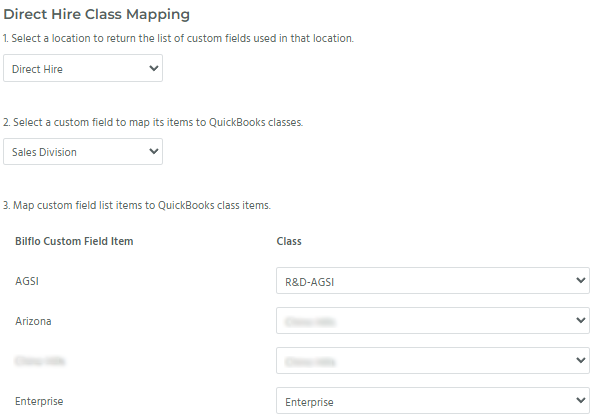
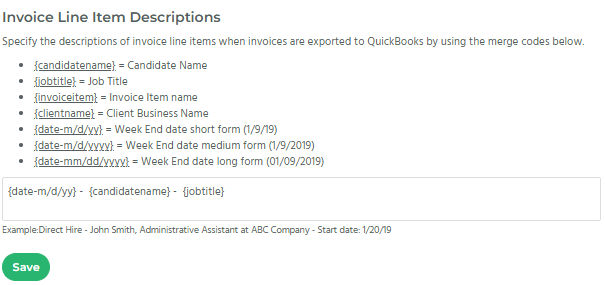
Part 4: Invoice Line Item Descriptions (Optional)
You may also set invoice description templates using merge codes.
Examples from your screenshot:
{date: m/d/yy} – {contractorname} – {jobtitle}Available merge codes include:
{firstname}– Contractor First Name{lastname}– Contractor Last Name{jobtitle}– Job Title{clientname}– Client Business Name{weekending: mm/dd/yyyy}– Week End Date
Click Save when done.