Invoice Group CC Recipients
What it does
You can now set up CC recipients on an Invoice Group (and on RPO Invoice Groups). When an invoice from that group is emailed — whether you send it manually from the invoice screen or it goes out via auto-delivery — those CC contacts are automatically included on the email alongside the regular “To” recipients.
Think of it like the “CC” line on a normal email: people who should get a copy but aren’t the primary recipient (e.g. an account manager, an internal AP person, a back-office contact).
Setting up CC recipients on an Invoice Group
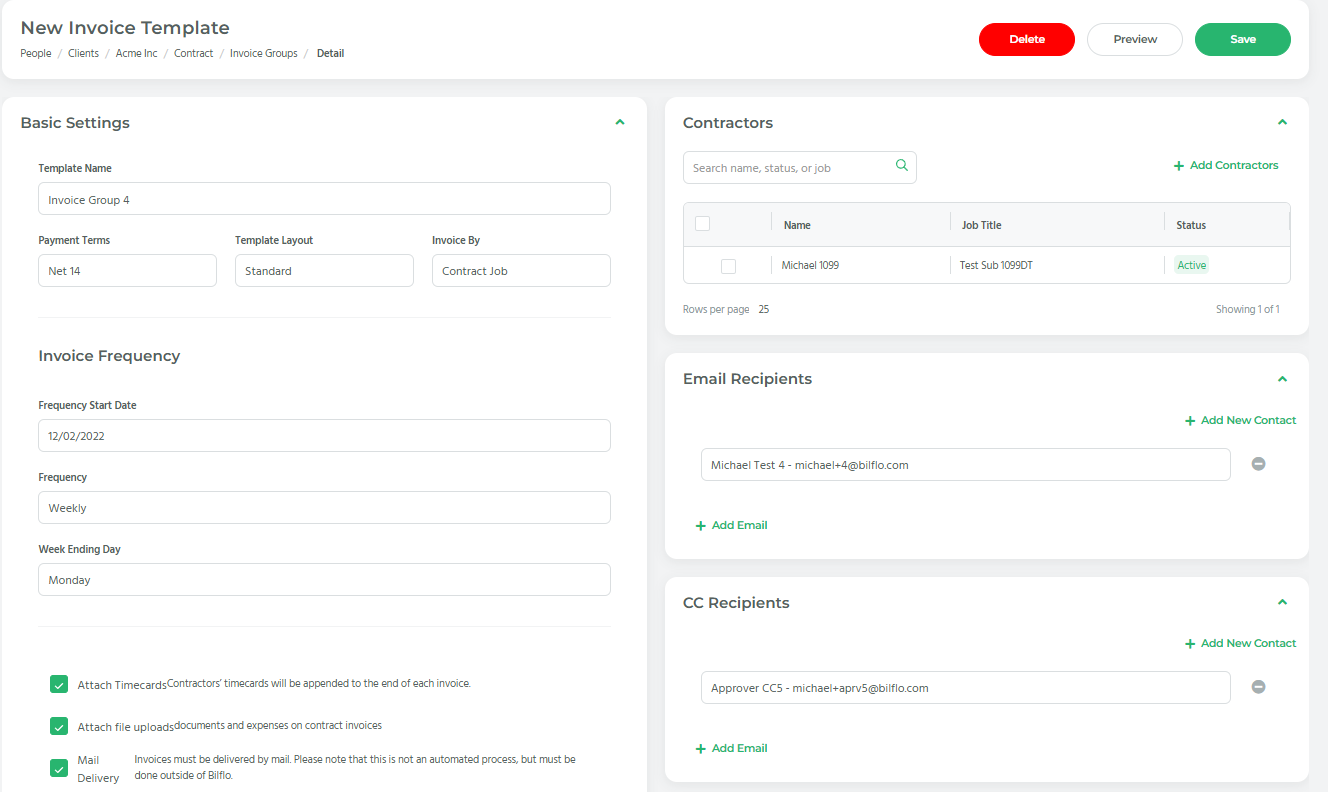
- Go to People → Clients → Contractors → Invoice Groups and open the Invoice Group you want to edit. (For RPO clients, open the RPO Invoice Group instead — it works the same way.)
- Scroll to the CC Recipients section. It’s a collapsible panel; click the header to expand it if it’s closed.
- Click + Add Email. A dropdown will appear showing all contacts available for that client.
- Pick the contact you want to CC. They must already exist as a client contact — if they don’t, click + Add New Contact at the top of the section to create them first. (*If you don’t see the new contact, please refresh the page, and the new contact should populate under the dropdown.
- Repeat to add more CC recipients. Each one gets its own row.
- To remove a CC recipient, click the – (minus) button next to that row.
- Save the Invoice Group as you normally would. The CC list is saved with the group.
Note: Only contacts with a valid email address on their profile will actually receive copies. Contacts without an email are silently skipped at send time.
What happens when you send an invoice
Manual send (from the invoice screen)

- Open an invoice and click the email/send button as you normally would.
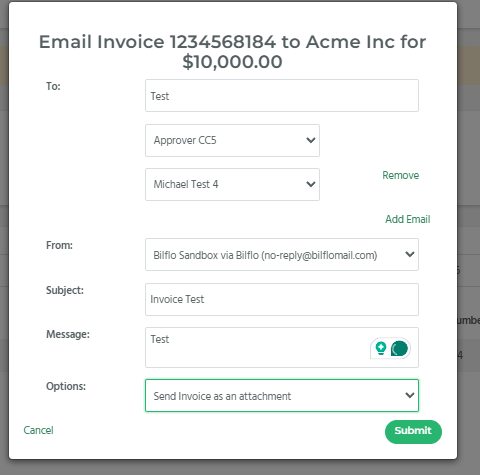
- The email modal opens — you’ll now see a CC field underneath the regular To field.
- The CC field is pre-filled with the CC recipients configured on that invoice’s Invoice Group.
- You can:
- Add more CC recipients ad-hoc for this one email (pick from the dropdown or type a comma-separated list).
- Remove any pre-filled CC by clicking the minus next to it (only affects this email — does not change the saved group setting).
- Send the email. All To and CC recipients receive it. Anyone already on the To line is automatically de-duplicated out of CC, so they don’t get two copies.
Auto-delivery
If an invoice goes out automatically (auto-delivery / scheduled email), the same CC list from the Invoice Group is attached without you doing anything. The delivery log records the CC addresses along with the To addresses.
Things to know
- One CC list per Invoice Group. It applies to every invoice in that group.
- Edits are not retroactive. Changing the CC list only affects emails sent after the change. Already-delivered invoices won’t be re-sent.
- De-duplication. If the same email address is both in the To list and the CC list, the system removes it from CC so the person only gets one copy.
- Per-email overrides (adding/removing in the modal) only apply to that single send. They don’t update the saved Invoice Group.
- RPO vs standard. RPO Invoice Groups have their own separate CC list — editing one does not affect the other, even if they share contacts.
Troubleshooting
| Problem | What to check |
|---|---|
| A CC recipient didn’t get the email | Make sure the contact has an email address filled in on their profile. |
| CC field is empty in the modal | Confirm the invoice’s Invoice Group actually has CC recipients saved. |
| Can’t find a contact in the dropdown | They must be a contact on the same client. Use + Add New Contact to create them first. |
| Duplicates worry | Don’t worry — the system de-dupes To vs CC automatically. |
Want me to save this as a markdown file somewhere (e.g. docs/), tailor it for a different audience (admin/internal vs end-customer), or add screenshots placeholders?